

The Maxmove WooCommerce plugin adds Maxmove as a shipping method, requests eligible delivery quotes at checkout, and automatically creates Maxmove deliveries from qualifying WooCommerce orders.
Requirements
- WordPress 6.7 or later, PHP 7.4 or later, and WooCommerce 8.9 or later.
- Admin access with the
manage_woocommercecapability. - A Maxmove business workspace with a valid company card.
- HTTPS for the public store and reachable WordPress REST endpoints.
- At least one WooCommerce shipping zone for your intended delivery area.
The plugin supports WooCommerce High-Performance Order Storage and block checkout. Classic checkout remains compatible.
Install the plugin
- Download the plugin package provided by Maxmove.
- In WordPress, open Plugins → Add Plugin → Upload Plugin.
- Select the ZIP file, install it, and activate the plugin.
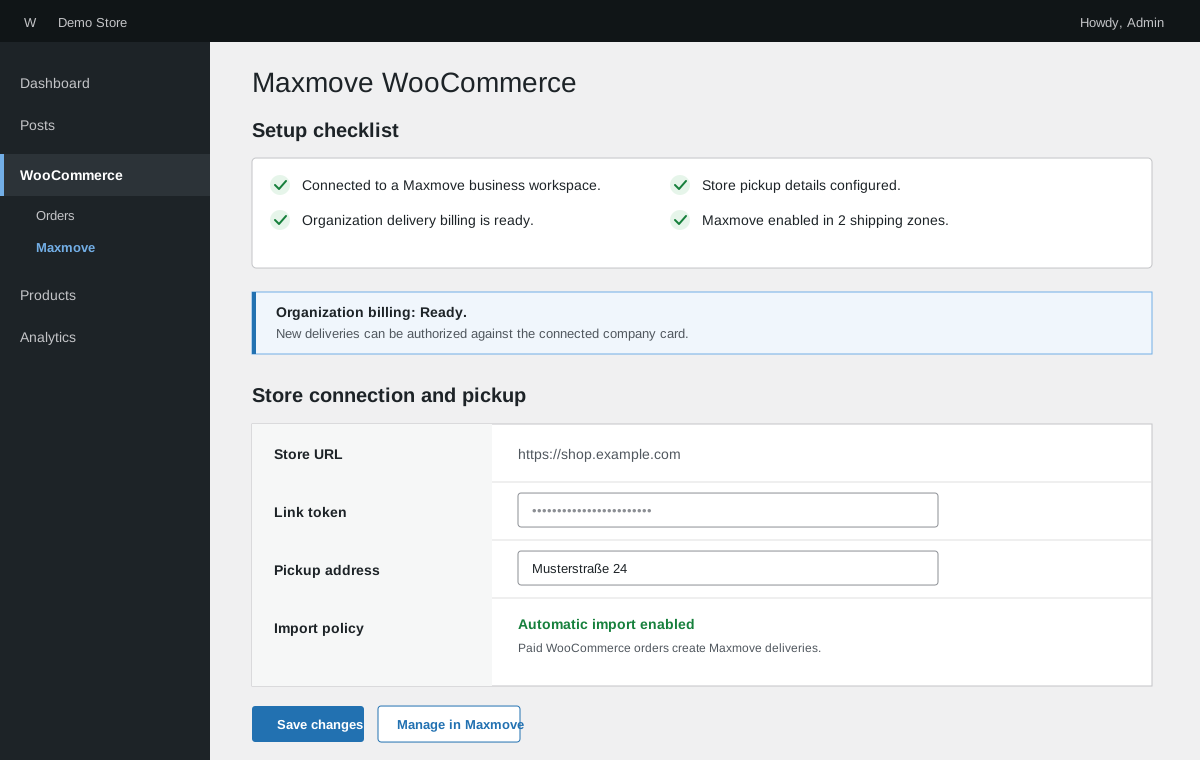
- Open WooCommerce → Maxmove.
Only install updates from a source confirmed by Maxmove. Do not change the Maxmove API address; it is fixed during normal operation.
Connect your business workspace
- In the Maxmove dashboard, create a new link token under Integrations → WooCommerce.
- Under WooCommerce → Maxmove → Store connection and pickup, paste it into Link token.
- Enter the store's complete pickup address.
- Save your changes.
After a successful connection, the setup checklist shows the linked business workspace and its billing status.
Enable Maxmove in shipping zones
- Open WooCommerce → Settings → Shipping → Shipping zones.
- Select a zone where Maxmove should be available.
- Add the Maxmove Delivery shipping method.
- Enable the method and save the zone.
- Repeat for every eligible zone.
WooCommerce cannot show a Maxmove checkout option unless the shipping method is active in the zone matching the delivery address.
Review delivery rules
The central Maxmove configuration controls:
- automatic or manual order import,
- whether only paid WooCommerce orders import,
- default vehicle and available delivery modes,
- live price, price adjustment, fixed price, or free delivery,
- optional add-on services and who pays for them.
The WooCommerce page shows a read-only copy of these rules. Use Edit in Maxmove to change the server-owned policy.
Test checkout
- Use a delivery address inside an enabled shipping zone.
- Add a shippable product with a weight to the cart.
- Confirm that Maxmove Delivery appears with a price and available delivery window.
- Select optional add-on services if needed and complete a test order.
- Review the WooCommerce order notes and Maxmove order reference.
The shopper's payment remains entirely in WooCommerce. Maxmove authorizes the delivery cost separately against the company card on the connected business workspace.
Before dispatch, Maxmove reserves the delivery amount on that card and collects it after delivery. If the delivery is canceled without a cancellation fee, the reservation is released. If the card is declined or needs bank approval, update or confirm it in your workspace billing settings before the delivery can proceed.
What happens after checkout
- WooCommerce reaches a configured order status that is ready for delivery.
- The plugin places an asynchronous import job in the WooCommerce Action Scheduler queue.
- Maxmove validates the checkout quote and authorizes the delivery cost.
- After a successful import, WooCommerce stores the Maxmove order ID.
- Signed webhooks update delivery status and order notes.
Temporary failures can be retried safely. The plugin prevents duplicate deliveries with stable idempotency data.
Common issues
Maxmove is missing at checkout: Check the shipping zone, pickup address, company card, product weight, and Maxmove service area.
The setup checklist is incomplete: Open WooCommerce → Maxmove and complete connection, billing, pickup address, and shipping zone in order.
An order did not import: Confirm that its WooCommerce status is included in the configured “Ready statuses.” Use the order action to retry the Maxmove delivery.
Status updates are missing: Confirm that WordPress REST endpoints are publicly reachable and that no firewall blocks signed Maxmove webhooks.