

The Maxmove Shopify app links your Shopify store to a Maxmove business workspace. Shopify can then show eligible Maxmove delivery options at checkout and automatically send qualifying orders to Maxmove for delivery.
Requirements
- An active Shopify store and admin access for apps, products, orders, and shipping.
- A store eligible for third-party carrier-calculated shipping: Advanced Shopify or higher, the Shopify plan with yearly billing or the carrier-service feature added, or a development store.
- A Maxmove business workspace.
- A valid company card on the connected Maxmove workspace.
- At least one Shopify pickup location with a complete address.
- Product weights and, where possible, package dimensions.
Install the app and connect your workspace
- Open the installation link provided by Maxmove and approve the requested Shopify permissions.
- In Shopify Admin, open Apps → Maxmove.
- Select Connect Maxmove, then sign in with a Maxmove business owner or administrator account.
- Choose the business workspace for this store and select Connect store. Maxmove returns you to the app in Shopify Admin.
Enable billing and checkout rates
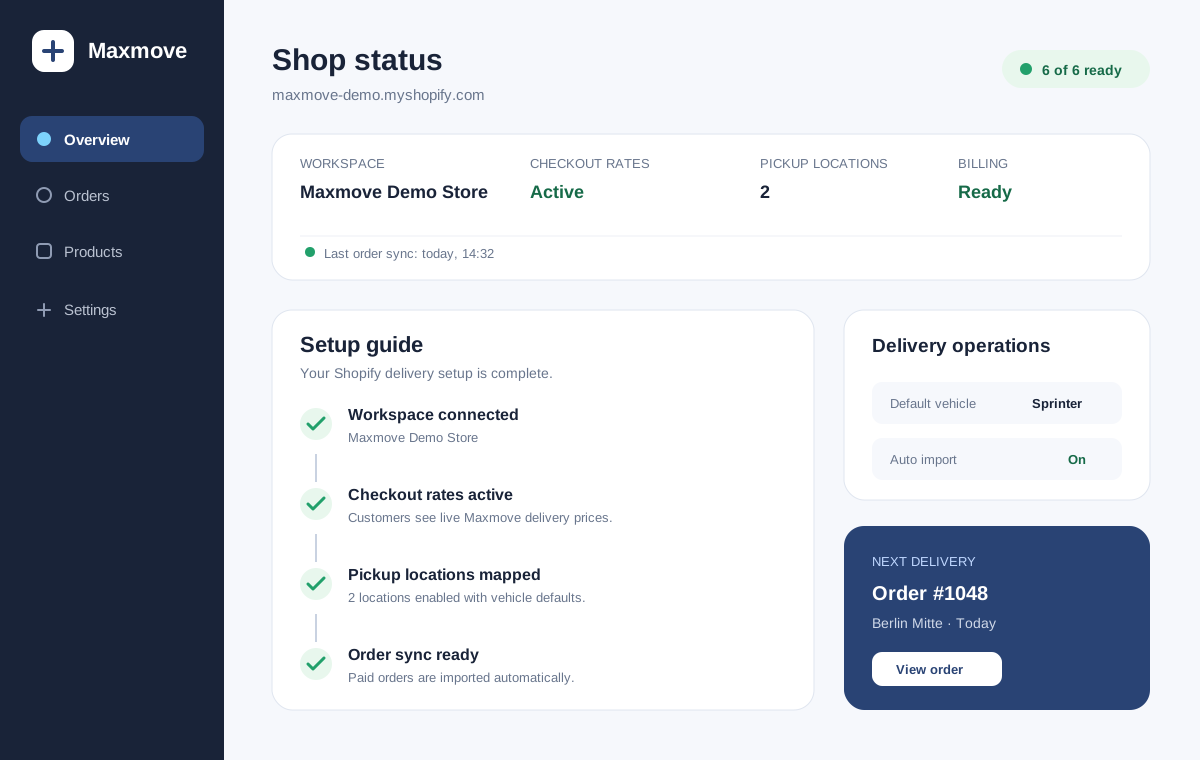
The app activates the Maxmove carrier service after the workspace is connected, the company card is ready, and delivery settings are complete. On the overview page, check:
- Workspace billing: must show ready.
- Checkout rates: must show active.
- Pickup locations: at least one location must be active.
- Default vehicle: every active location needs a vehicle default.
The shopper's payment remains entirely in Shopify. Maxmove authorizes the delivery cost separately against the company card on your business workspace.
Before dispatch, Maxmove reserves the delivery amount on that card and collects it after delivery. If the delivery is canceled without a cancellation fee, the reservation is released. If the card is declined or needs bank approval, update or confirm it in your workspace billing settings before the delivery can proceed.
Configure locations, pricing, and services
Open Settings in the Maxmove app:
- Enable the Shopify locations where Maxmove may collect orders.
- Choose a default vehicle for every active location.
- Choose whether eligible orders import automatically. If you turn this off, you send each order yourself under Orders with Send to Maxmove.
- Configure the shopper-facing delivery price: live price, adjustment, fixed price, or free delivery above a subtotal.
- Select optional add-on services and whether the merchant or shopper pays for them.
Save your settings, then return to the overview page and review the setup checklist.
For shopper-selectable extras, Shopify Plus is required. In Shopify Settings → Checkout, customize the active checkout configuration, add the Maxmove delivery add-ons app block, and save. Saving services in Maxmove alone does not add this block. Optional shopper-paid extras appear as separate items in the order summary.
Review product data
The Products page identifies variants with missing weights or package profiles. Maxmove uses this data to select a suitable vehicle and calculate a reliable checkout quote.
Add:
- a weight for every variant,
- package length, width, and height when they differ from product dimensions,
- a separate package profile for bulky items.
Place a test order
- Use a delivery address inside an area served by Maxmove.
- Add a product with complete delivery data to the cart.
- Confirm that a Maxmove delivery option appears at checkout.
- Complete a test order using your normal Shopify testing process.
- Open Apps → Maxmove → Orders and review the import and delivery status.
Depending on your import policy, the order may import only after Shopify marks it as paid.
What happens after checkout
- Shopify confirms the order and its payment status.
- Maxmove imports an eligible order automatically or after a manual action.
- The business workspace authorizes the delivery cost.
- Maxmove matches a suitable driver and runs the delivery.
- Delivery status and fulfillment details synchronize back to Shopify.
Common issues
No Maxmove option at checkout: Check carrier-calculated shipping eligibility, checkout rates, pickup location, company card, product weight, and service area.
Order does not import: Check payment status and the state under Maxmove → Orders. If automatic import is off, select Send to Maxmove next to the order. If it is on and an order is missing, select Check for missing orders.
A location is not ready: Add a complete Shopify location address and a default vehicle type.
Carrier service could not activate: Reauthorize or reinstall the app if Shopify permissions are missing. Contact support if the message remains.
Store or business is already connected elsewhere: Open Maxmove from the Shopify store that owns the current connection. If you are replacing a previous installation, uninstall Maxmove from the old store before connecting the new installation.