

Maxmove Delivery adds a dedicated shipping method to Shopware 6.7, requests signed Maxmove delivery windows during checkout, and turns paid Shopware orders into exactly one Maxmove delivery.
Requirements
- Shopware 6.7 (
shopware/coreandshopware/storefront≥ 6.7.0, < 6.8). - PHP 8.2 or higher.
- Administration rights for extensions, shipping methods and sales channels.
- A Maxmove business workspace with a valid company card.
- HTTPS on the storefront and reachable Store API endpoints.
The plugin's durable job queue needs the Shopware message consumer and the scheduled task to be running. The task maxmove_delivery.dispatch_jobs runs every 60 seconds by default.
Install the plugin
From the console:
bin/console plugin:refresh
bin/console plugin:install --activate MaxmoveDelivery
bin/console cache:clear
Alternatively, upload the ZIP package provided by Maxmove under Extensions → My extensions → Upload extension and activate it there.
On installation the plugin creates the Maxmove Delivery shipping method, assigns it to every storefront sales channel, and adds the product field Maxmove extra-service key. Do not change the technical name MaxmoveDelivery.
Connect your business workspace
- In the Maxmove dashboard, open Integrations → Shopware and create a connection code.
- In the Administration, open Extensions → Maxmove Delivery.
- Paste the code into Connection code from the Maxmove dashboard.
- Select Connect business workspace.
The status switches to Connected. If it stays on Check connection, the code has expired or the Store API is not reachable.
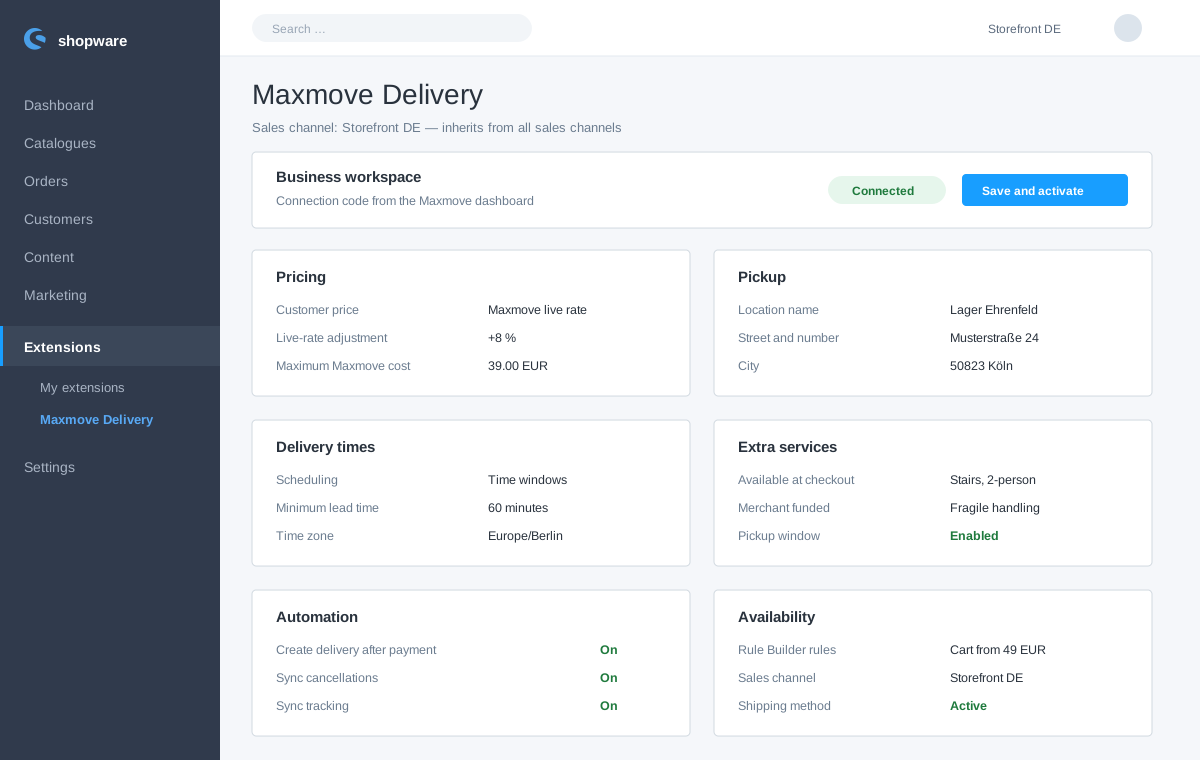
Configure delivery rules
The settings live in the Shopware plugin configuration and follow Shopware's native sales-channel inheritance: maintain a default under All sales channels and override it per channel where needed.
- Pricing — customer price as Maxmove live rate, fixed price or free; live-rate adjustment in percent, currency, free-above-cart-subtotal threshold and maximum Maxmove cost.
- Pickup — location name, street and number, postal code, city and country of the pickup location.
- Delivery times — scheduling (ASAP only, same day or time windows), minimum lead time in minutes, time zone, opening and closing hour.
- Extra services — which services buyers can select at checkout and which ones the merchant funds: stairs, fragile handling, pickup window, two-person delivery, installation.
- Automation — create delivery after payment, sync cancellations, sync tracking.
- Availability — Rule Builder rules that decide when Maxmove Delivery is offered at checkout.
Extra services can also be enforced per product: set the matching Maxmove extra-service key on the product under Custom fields → Maxmove Delivery.
4. Publish the shipping method
- Open Settings → Shipping methods → Maxmove Delivery.
- Check the availability rule, delivery time and sales-channel assignment.
- Open Sales channels → your storefront channel → Shipping methods and make sure Maxmove Delivery is active.
Without an active shipping method in the selected sales channel, Shopware cannot show a Maxmove option at checkout.
Test the checkout
- Add a deliverable product to the cart.
- Use a delivery address inside the area Maxmove serves.
- Confirm that Maxmove Delivery appears with a price and a selectable time window.
- Select extra services if needed and complete a test order.
- Open the order and check the stored checkout evidence and the Maxmove order reference.
Customer payment stays entirely in Shopware. Maxmove authorizes the delivery cost separately against the company card of the connected business workspace.
What happens after an order
- The order reaches the configured payment state (paid by default).
- The plugin enqueues a job in the plugin's durable queue.
- Maxmove validates the signed checkout quote and authorizes the delivery cost.
- Exactly one Maxmove delivery is created; redelivered events never produce a duplicate.
- Signed callbacks keep status, tracking and cancellations in sync both ways.
Common problems
Maxmove is missing at checkout: check the shipping-method assignment in the sales channel, the Rule Builder rule, the stored pickup address, the minimum lead time, and whether the delivery address is inside the area Maxmove serves.
The connection status stays on "Check connection": create a new connection code and make sure the storefront is publicly reachable over HTTPS.
An order does not create a delivery: check that Create delivery after payment is enabled, that the payment state was reached, and that the scheduled task maxmove_delivery.dispatch_jobs and the message consumer are running.
Status updates are missing: check that the Maxmove callback route is publicly reachable and that no firewall blocks the signed requests.