
Place your first order
Step-by-step flow for creating your first delivery request.
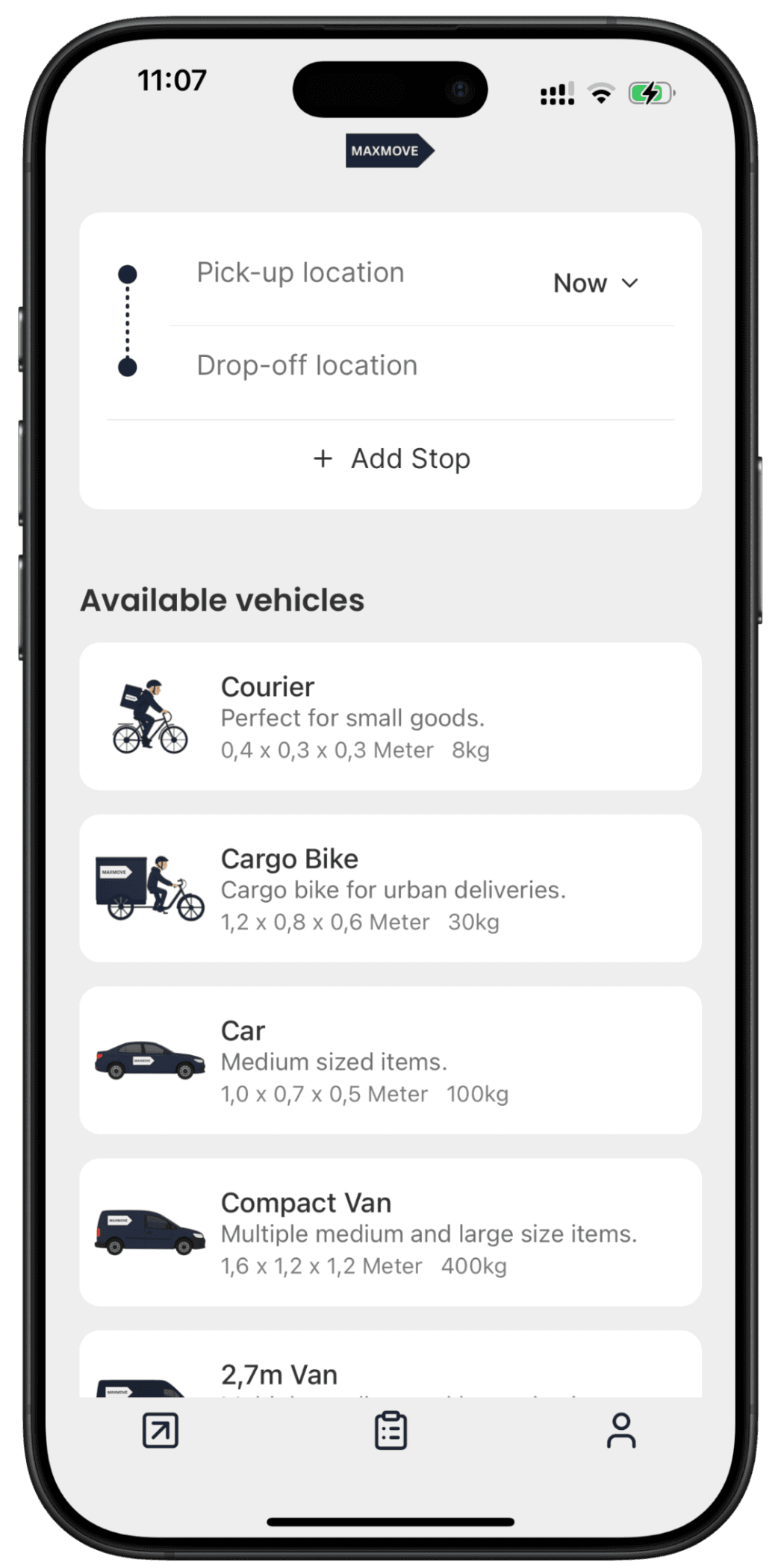
This guide explains the booking flow for your first delivery request: add stops, choose a vehicle, review pricing, and confirm.
What this is
Use this flow when you want to create a new pickup and drop-off order in the customer app.
What to provide
- Add pickup and drop-off addresses.
- Add extra stops if needed.
- Pick schedule date and time.
- Select a vehicle type and include delivery notes for handover.
What happens next
- The app shows an estimated price before checkout.
- After confirmation, dispatch starts assignment based on route and availability.
- You can track status from pending to assigned, in transit, and delivered.
If route details change after confirmation, assignment speed and final pricing can be adjusted.
Was this article helpful?
Related articles
Create your account and set up your profile
How to register and complete your basic customer profile.
Switch workspace and account type
Move between Customer, Business, Driver, and Fleet contexts with the right access.
Referral program and invite rewards
How referral invites and rewards are handled by workspace and campaign eligibility.
Maxmove workspace overview
When to use Customer, Business, Driver, and Fleet workspaces.
← Back to Getting Started
Still need help? Contact support