
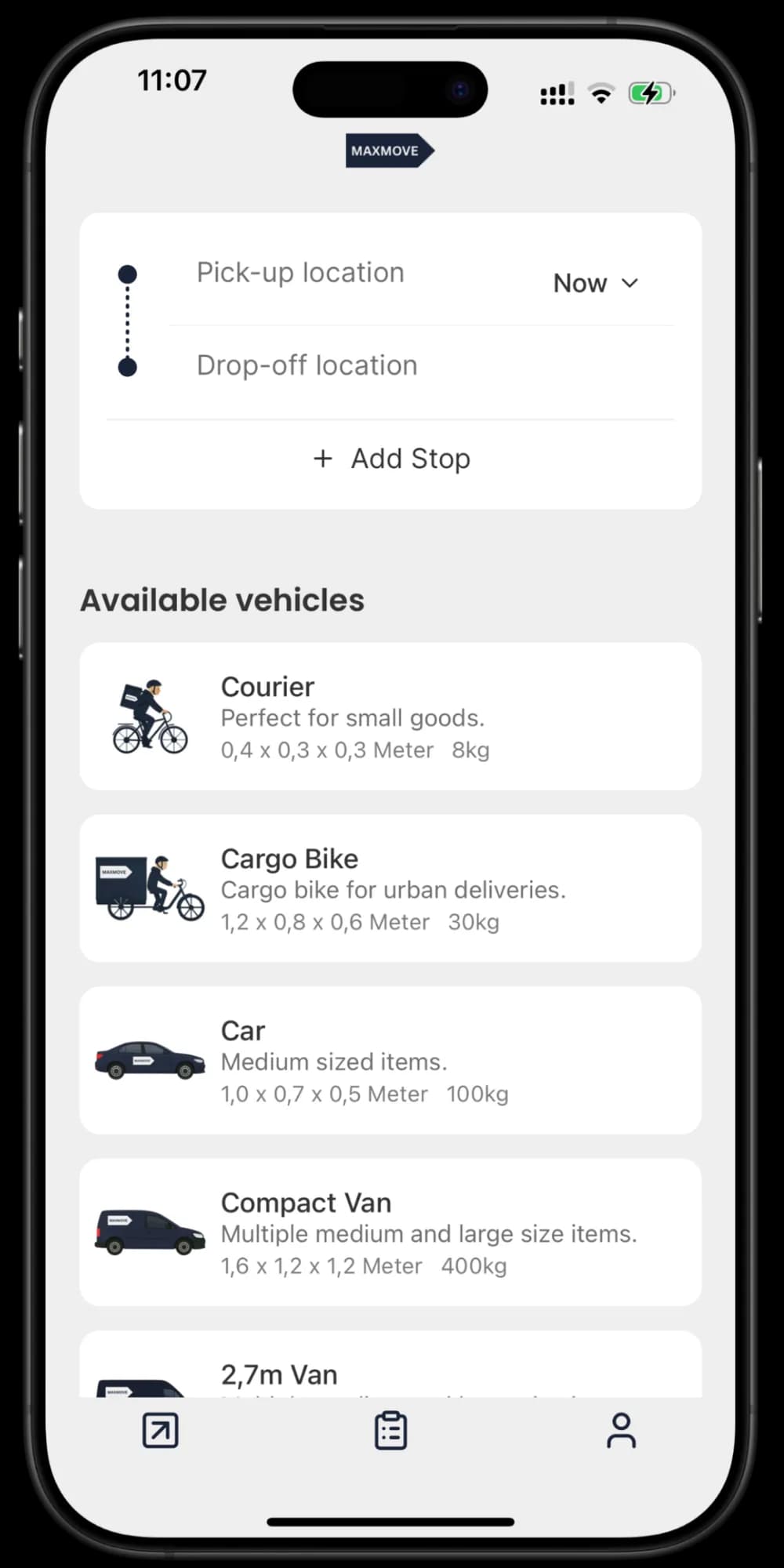
This guide explains the booking flow for your first delivery request: add stops, choose a vehicle, review pricing, and confirm.
What this is
Use this flow when you want to create a new pickup and drop-off order in the customer app.
What to provide
- Add pickup and drop-off addresses.
- Add extra stops if needed.
- Pick schedule date and time.
- Choose the vehicle. Below it, under Shipment, you can say what is being transported. This is optional; if the shipment does not fit the chosen vehicle, the booking shows one that does.
- Add notes for the driver if needed.
What happens next
- The app shows an estimated price before checkout.
- In the dashboard, the primary button names the next missing address, vehicle or payment details. Select it to go directly to that field.
- After confirmation, dispatch starts assignment based on route and availability.
- You can track status from pending to assigned, in transit, and delivered.
If route details change after confirmation, assignment speed and final pricing can be adjusted.
Book on maxmove.com without an account
Enter the route, pickup time, vehicle and your contact details on the first page. Add the optional shipment, transport insurance, company billing details and driver notes on that same page. Select Continue to open confirmation. There, review the transport and price and pay directly with a card, Apple Pay or Google Pay. Wallet buttons appear when your device and browser support the wallet. No separate payment page opens; your bank may still ask you to authenticate the payment in its own dialog.
Book with a connected fleet in the dashboard
If your workspace is connected to a fleet, you can select that fleet when reviewing a dashboard booking. Depending on the fleet's settings, checkout shows its binding price, an estimate, or a notice that the fleet will confirm the price. Review that price before submitting; an expired quote must be refreshed.
The fleet also decides whether it accepts scheduled pickup times and references. Checkout tells you when pickup will be as soon as possible or when your reference will not be sent.
Saved places
Save an address as Home, Work or a named place when confirming a stop. Saved places belong to the active workspace and appear in both the dashboard and customer app. Every business member can use the shared address book. Completing an order updates place usage and adds its final recipient to contact suggestions.